If you repeatedly find yourself without enough space to install important updates or new applications, you may need to clear out space on your system, increase a partition’s size, or add a secondary SSD – perhaps even replace the existing drive. Regardless of how you address it, it’s important to fix the problem as a full drive degrades storage performance, too.
Running out of space on your Windows PC or laptop can be a significant problem and one worth addressing. Not only will you face errors related to disk space when trying to update the operating system or install applications, but it can inhibit performance as modern SSDs need some free space (typically 10-20%) to be able to make the most efficient use of the NAND flash available.
There are several ways you can fix this issue, from removing unnecessary data from your existing drive, to expanding a partition, to installing a new SSD to increase overall storage capacity.
Free up space on your existing drive(s)
The simplest way to increase the available free storage space on your existing drives– so that you can install applications or download updates– is to remove some of the data already on there. Some of the best ways to do that include:
- Empty the Recycle Bin.
- Uninstall unnecessary applications and games.
- Move backed up home videos and pictures to external storage. Ensure with certainty you have at least one backup (and ideally 2-3) before deleting them.
- Run Windows’ Disk Clean-up tool – look for “Disk Clean-Up” in Windows search.
- Ensure Storage Sense is turned on to delete unnecessary files – Navigate to Settings> System > Storage and toggle to On.
- Run an external space-freeing tool like Ccleaner.
Increase the size of your partition
If you have a larger drive but are running out of space in a particular partition, you can increase that using Windows’ own disk management tool.
- Use Windows search to look for “Disk management,” and select Create and format hard disk partitions.
- Locate the drive that you are running out of space on. You can use the “%Free” column at the top to spot it.
- If there is extra “Unallocated space” on that drive that is not currently used by that partition, you can increase the size of the existing partition. Right-click it, and select Extend Volume. Follow the on-screen instructions to select the amount of additional space you want to increase that partition by.
Upgrade your storage
If you can’t make any more space on your drives and the partitions are already at their limit, then the only way to increase your storage space beyond that is to upgrade your storage. That can mean replacing the SSD you have, with new high-end options like the Biwin Black Opal X570 Pro SSD. With up to 8 TB capacities, there’s plenty of space there to expand your existing storage.
Alternatively, if your laptop or PC has space for secondary, or additional drives, you can install another SSD alongside your boot drive. This will expand your overall storage capacity, and give you the opportunity to move apps, games, and data from the boot drive to free storage capacity there. Some application managers, like Steam, allow for the direct transfer of games and applications from one drive to another, while others will require manually uninstalling and reinstalling on the new SSD.
For help selecting a new drive, check out our guide on how to choose the right SSD for your system.
Try to always keep some space free
Managing the storage on your devices is important, both for ensuring you have enough space for new apps and updates, and so that your drives operate at peak performance. With around 20% of free space in your SSD, you ensure that it can move data around as necessary to give you peak read and write performance throughout the drive’s lifespan.
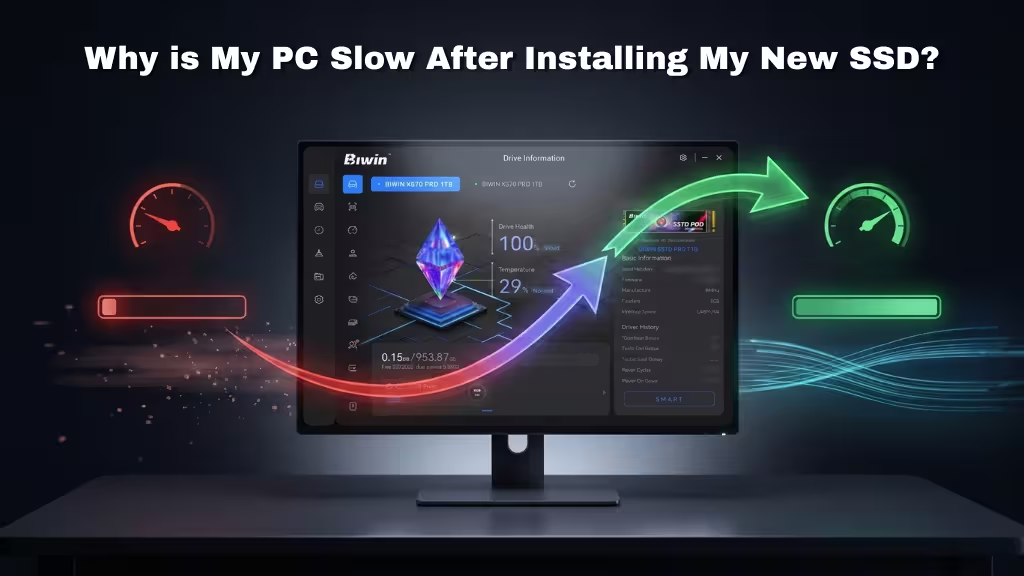
For more help in managing your storage and maintaining a look at your drives’ health, consider management tools like Biwin Intelligence which give you a unique insight into how your drives are doing.
Need More Storage? Consider the Biwin Black Opal X570 PRO
If deleting files and reorganizing partitions still isn’t enough, replacing your existing SSD with a higher-capacity model can be the simplest long-term solution. The Biwin Black Opal X570 PRO is available in capacities of up to 8 TB, giving you plenty of room for Windows, applications, games, and large media libraries without constantly juggling free space. It also delivers the fast read and write performance you’d expect from a modern PCIe 5.0 SSD, making it a practical upgrade whether you’re expanding storage or replacing an aging system drive.

FAQ
How to free up disk space on Mac or Windows?
You can free up disk space on Mac or Windows by deleting unnecessary files, removing unused applications, emptying the Trash or Recycle Bin, and clearing temporary files. On Windows, tools such as Storage Sense and Disk Cleanup can help identify and remove files you no longer need. On Mac, you can use System Settings > General > Storage to review and manage storage.
Why is my C drive so full?
Your C drive may be full because of temporary files, installed applications, Windows update files, downloads, large personal files, or system files. Use Windows Settings > System > Storage to see what is using the most space, then remove unnecessary files or move large files to another drive.
What should I delete if my storage is full?
If your storage is full, start by deleting temporary files, unnecessary downloads, unused applications, old installation files, and files in the Recycle Bin. Avoid manually deleting Windows system files or other files you don’t recognize. For files you want to keep, consider moving them to another drive, an external SSD, or cloud storage.