Installing a new, modern SSD should make your PC feel fast, snappy, and responsive. If it actually feels slower after installing, there’s clearly a problem that needs fixing. It’s possible the drive itself is faulty, but you may also need to adjust any settings which were changed automatically during the install process.
If you’ve just installed a new SSD and were hoping for incredible new performance, only to find your PC actually feels slower, that can be a huge disappointment. Fortunately, it’s probably an easy fix, as often settings can be automatically changed during the install process, or you might just need to update some drivers and firmware. In the worst case, the drive is faulty, and you can replace it, but that’s the least likely reason for the issue.
Check the New Drive
The first step to diagnosing this issue is to first double check you are booting to the new drive. Check the Windows File Explorer or look in the BIOS boot section to make sure you are booting to the new drive. If you’re not, simply switching over to the new drive might solve all your issues.
If you are booting to the new drive, then it’s worth checking its health to make sure the drive itself is in good condition. It’s rare, but occasionally new SSDs can be faulty and if you bought it second-hand, you can never be sure what condition it’s in.
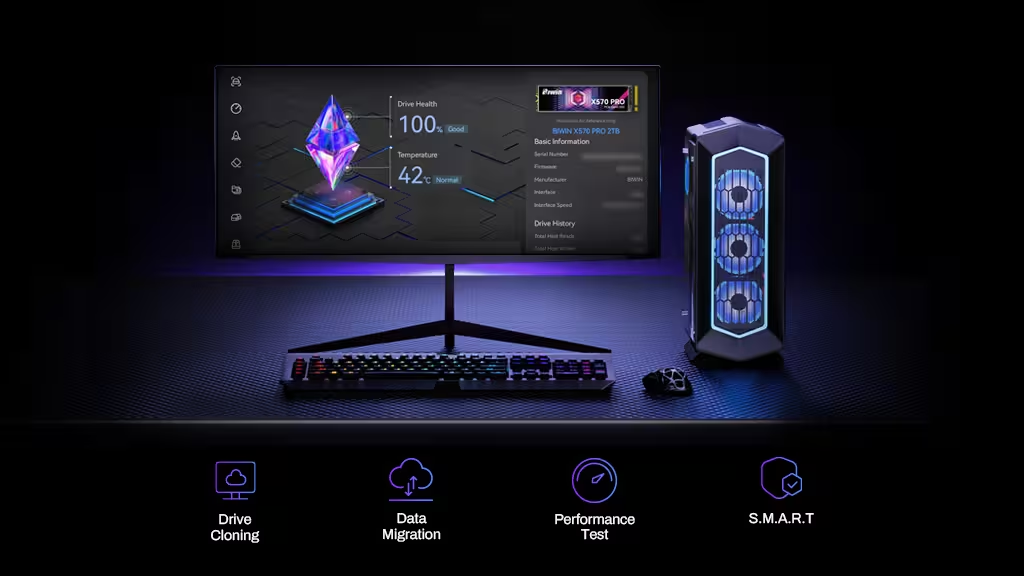
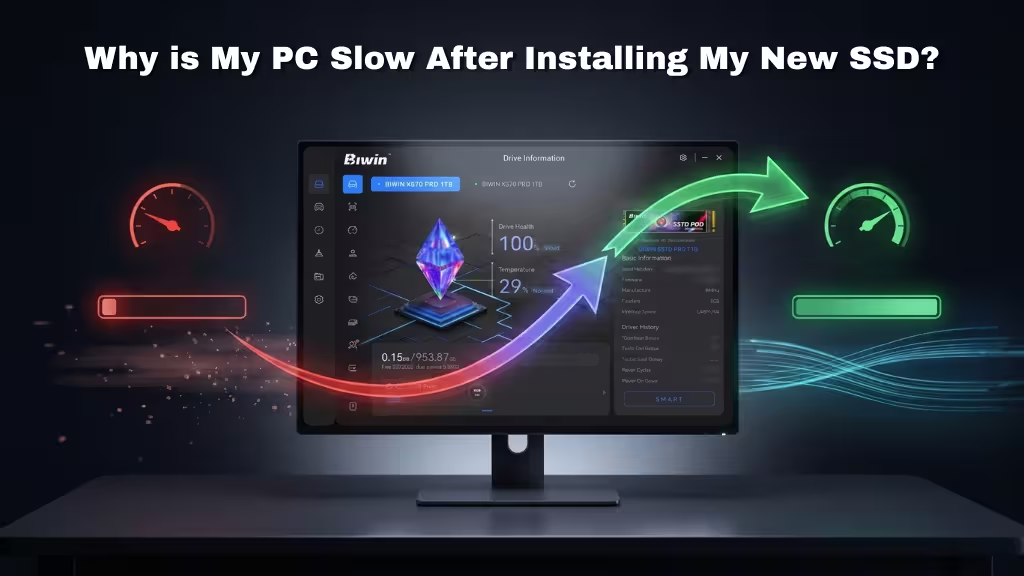
If you’re using a Biwin SSD, the Biwin Intelligence tool is a great way to check your drive’s health and confirm it’s in good working condition. Third party tools like CrystalDiskInfo can be used for alternative SSDs.
For a more detailed look at SSD health monitoring, check out our guide on how to check SSD health easily, which covers the key indicators and tools you can use to evaluate your drive.
Confirm the BIOS is up to Date
It’s possible that when you installed the new SSD, your BIOS reset some settings. Boot into your BIOS and confirm the following:
- Make sure your XMP/EXPO memory profile is enabled. If disabled, this can degrade CPU and memory performance.
- Make sure REBAR (Resizeable BAR) is enabled. If disabled this can degrade GPU performance.
- If your motherboard supports overclocking, ensure that AMD PBO or Intel Thermal Velocity Boost are enabled to enable automated overclocking. If these are disabled, you may notice a dip in performance.
You can also try updating your BIOS if it’s several years/generations out of date. Visit your motherboard/system manufacturer’s website to download the latest BIOS and for up-to-date installation instructions.
Update Drivers
Some SSDs need new drivers to take full advantage of them. Update your motherboard/system chipset drivers by downloading the latest versions from your manufacturer’s website. Considering upgrading your graphics drivers too, it may help with any gaming performance issues you’re facing.
You might want to check your SSD maker’s website too and download any recent firmware updates. Update to the latest version of Windows, too, to ensure you have all the latest performance and stability tweaks.
Check CPU temperature
System performance isn’t hugely impacted by your new SSD. It will make the system boot faster, and apps and games load more quickly, but it won’t improve your frame rate or make your system transcode videos more effectively.
Use a monitoring application like HWInfo or Open Hardware Monitor to check your CPU and other system temperatures to confirm if something is overheating. If it is, addressing that issue may solve your PC slowdown issues.
Install drive in another slot
One final check you can try is installing the new SSD in a different slot. If you’ve installed it in an M.2 port that only supports older PCIexpress standards, it may perform worse than expected. Similarly, if a particular M.2 slot is faulty or damaged, performance or stability issues may be present.
Switching to the best performing M.2 slot on your motherboard or installing a PCIe M.2 add-in card may solve the performance issues.
If in Doubt, Return it
Although rare, occasionally new SSDs are sold with hardware defects. These can cause degraded performance and stability issues for several reasons, and the only way to fix them is to replace the drive. If you have ruled out everything else and you are still having PC slowdown issues, reach out to your retailer or SSD manufacturer to arrange a replacement or refund.
A Simple Way to Check Your SSD
If you’re troubleshooting slow performance after installing a new SSD, it helps to have a reliable way to check the drive’s condition. Biwin Intelligence provides an easy way to view SSD health information, monitor S.M.A.R.T. data, and run performance tests to confirm that your drive is working as expected. It can be useful when diagnosing installation issues, checking for potential problems, or simply keeping track of your SSD over time.