
Planning to give away or re-sell your SSD? You need to make sure it’s ready first. If you don’t, you risk giving away personal data which can lead to embarrassment, or even identity theft. You could also be leaving money on the table. Here’s how to get your SSD ready for resale or recycling.
With spiraling costs for some PC components, selling on or giving away old hardware you have lying around is a great way to make a little more or give back to your friends and family. But if you don’t know how to get your hardware ready for resale or recycling, you can end up giving away a lot more than you meant to.
In one recent example, TomsHardware reported how a lucky motherboard buyer ended up with four premium SSDs along with it – all for just $50! It goes to show, that when selling motherboards or any other components, it’s important to strip them of what you want to keep first. The same goes with selling or recycling your SSDs. You need to get them ready.
Protect your data
When giving away or selling your SSD, the most important thing you absolutely must do is remove your old data. A factory reset is the quickest and easiest way to do that, and you can do it in Windows without even rebooting. But that doesn’t really go far enough – especially if your drive has sensitive data on it.
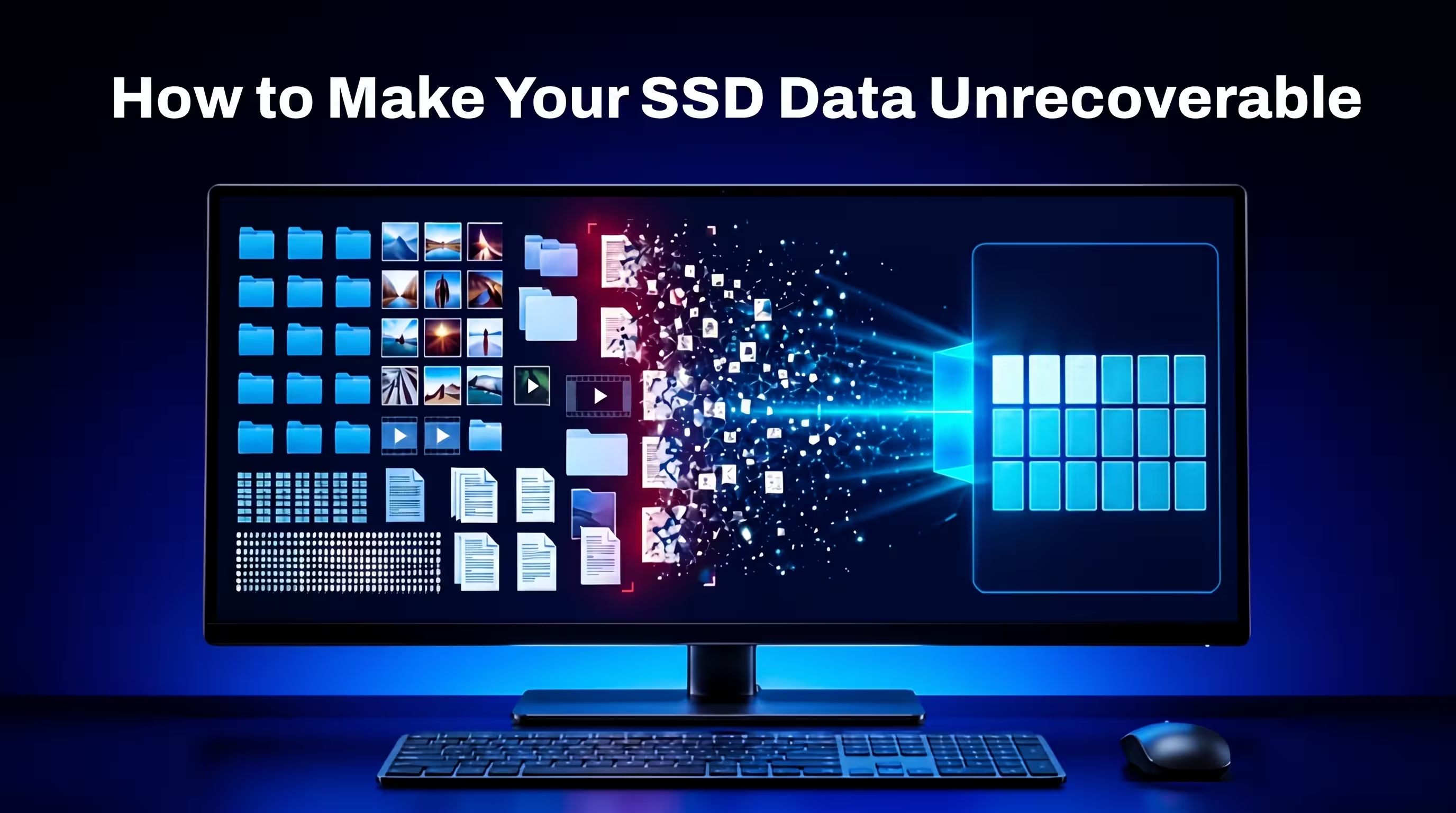
A factory reset only removes references to where your data is. While it won’t be easily accessible through Windows, recovery software can retrieve all kinds of information, even if the drive has been reset. If you want to make sure your old data cannot be recovered, check out our guide on how to make your SSD data unrecoverable.
To properly remove your data, you need to perform a secure erase. If you’re using a Biwin SSD, you can use Biwin Intelligence to perform a “Drive Erase,” to change all bits on the drive to zeros, effectively removing any trace of any information. If you’re using a drive from another manufacturer, they may have their own secure erase utility you can use.
Alternatively, check your BIOS, as you can sometimes find secure erase tools in there. There are also third-party Windows tools like Parted Magic which offer similar capabilities.
If you’re looking to recycle the drive to avoid e-waste, you can also physically damage the drive by drilling through or smashing the memory chips, but that’s only strictly necessary if the data you’re hoping to hide is of the utmost sensitivity and you need to guarantee its unrecoverability. Otherwise, a secure erase is plenty of protection.
Don’t forget the heatsink
One of the clues the lucky buyer of the motherboard saw indicating a hidden cache of storage was all the heatsinks were still attached. That didn’t guarantee there was a drive under there, but it was a good indication.
If you’re looking to pass your components on to anyone else, be sure to remove the heatsinks and check underneath first. Indeed, if you’re selling or recycling your SSD you might want to consider removing the heatsink anyway. You could re-use that for another project or sell it on separately if you’re just binning the drive and make a little extra money to go towards your next SSD upgrade.
Getting an SSD Ready for a Fresh Start
Preparing an SSD for resale isn’t just about protecting your own data, it also helps ensure the next owner starts with a clean slate. For compatible drives, Biwin Intelligence brings secure erase, drive health information, S.M.A.R.T. monitoring, and other maintenance tools together in one place, making it easier to prepare an SSD before it’s reused, resold, or repurposed. Taking a few extra minutes to securely erase the drive and check its condition before handing it over can help avoid surprises later. It’s a simple final step before your SSD begins its next chapter.