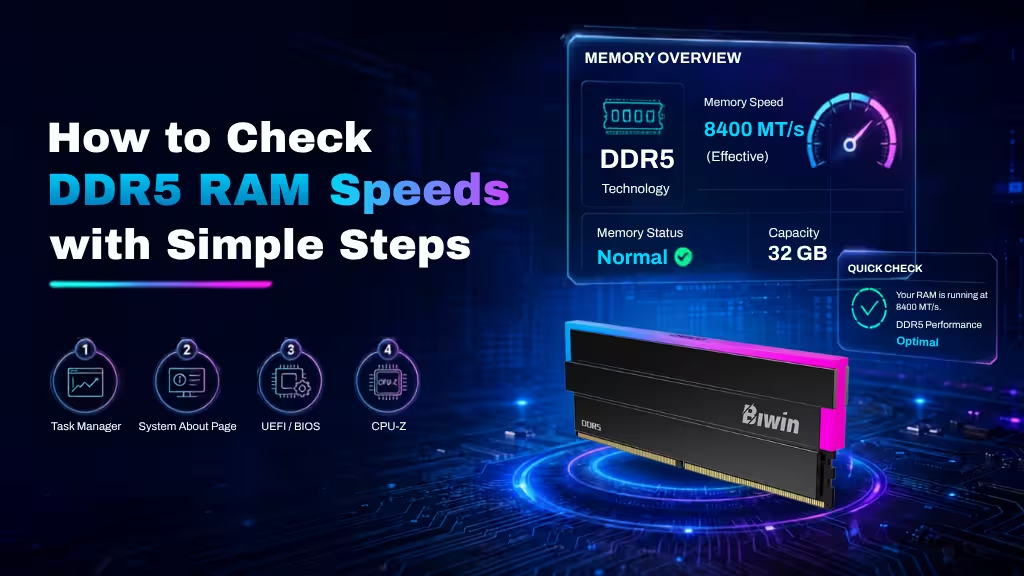
Knowing how fast your DDR5 RAM is running is important to make sure you’re getting the best performance from your memory. Often DDR5 can run at stock speeds without its overclocking profile applied. To ensure you’re getting the most from your RAM, here’s how to check the DDR5 RAM speed.
Checking the speed of your DDR5 memory is important to do to make sure that your RAM is giving you the best possible performance for gaming, work, and any other demanding tasks. Often times, fast DDR5 memory will run at stock speeds that are lower than what it’s capable of and requires manual adjustment or applying its overclocking profile in the BIOS. But you won’t know whether you need to do that without checking its speed first.
Here’s how to do it.
Checking your DDR5 RAM speed
There are a number of different ways you can check your memory speed. Some you can do without downloading or installing anything, but some third-party tools can give you more information if you’re willing to install them.
Task Manager
The quickest and easiest way to check your DDR5 memory speed in Windows is using Task Manager. Right-click your task bar and select Task Manager. From the left-hand menu, select Performance. Then from the list of components (CPU, Disk 0, Ethernet, etc.) select Memory. Look to the bottom of the window where you’ll find a range of memory metrics like capacity, cached memory, available memory, etc. You’ll also find Speed. The figure next to that is your current memory speed in Mega Transfers per second (MT/s).
System About page
Windows also lists your memory speed on the System About page. You can navigate to Settings > System > About, or right-click on This PC on the left-hand side of a File Explorer window and select Properties.
When you’re on the About page, look to the top panel where various pieces of system information are listed. Alongside total and available storage, graphics card VRAM, and Processor specifications, you’ll also seed Installed RAM which will give you your existing quantity, and the current memory speed listed in MT/s.
UEFI / BIOS
If you want to look at more detailed settings for your memory in order to make adjustments to it, then the UEFI/BIOS is the best place to do so. To access it, you’ll need to reboot your system and press the special BIOS access key(s) during startup. This is usually Delete or F2, but can be any of the function keys. Look in your system’s manual or manufacturer website for specific instructions.
When in the UEFI/BIOS, you may find the memory speed in a specifications or system status page. Alternatively, navigate to the overclocking page and you’ll find all information on your memory there, as well as the ability to adjust it if you choose.
CPU-Z
There are a range of third-party applications that can track memory speed, but one of the most long-standing and popular options is CPU-Z. It’s a comprehensive system monitoring tool that will give you all the information you need on your CPU, motherboard, and memory. Download it, run it, and navigate to the memory tab to find out your DDR5 memory speed.
Want to Upgrade or Install RAM?
If your DDR5 RAM is running below its rated speed or you’re planning a memory upgrade, installing new RAM is another straightforward way to improve your PC’s performance. Before you get started, make sure your new memory is compatible with your motherboard and processor. For a step-by-step walkthrough, see our guide to Simple Steps to Install RAM on PC by Yourself.
High-Speed DDR5 RAM in Real-World Systems: Biwin Black Opal DW100
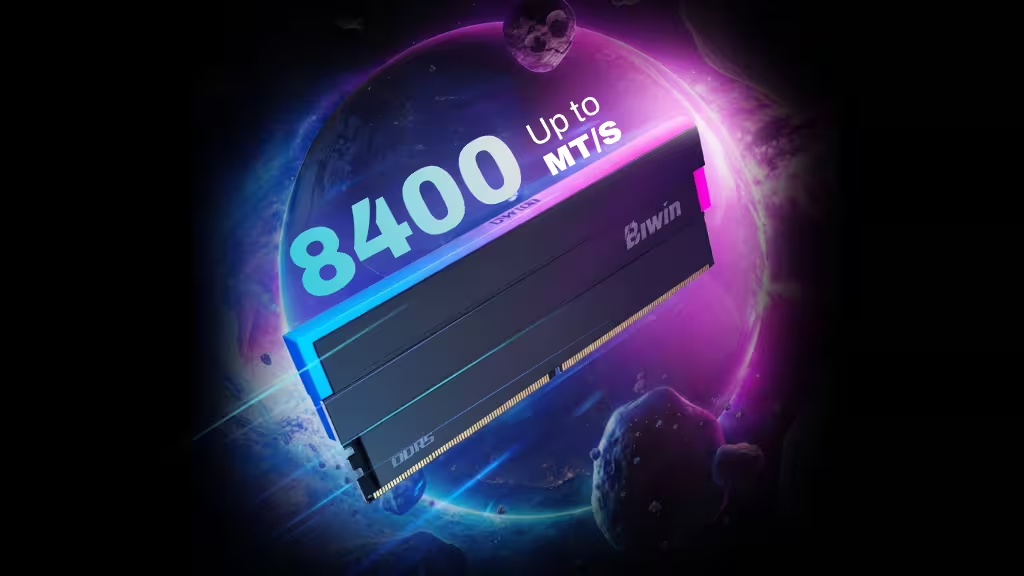
Checking your DDR5 RAM speed is the only way to confirm how fast your memory is actually running in your system. This is particularly relevant with high-performance DDR5 memory used in modern PCs, such as the Biwin Black Opal DW100 DDR5 RGB. On compatible platforms, DW100 supports data rates up to 8400 MT/s, delivering strong performance for gaming and creative workloads.
DW100 combines premium Hynix ICs, an unlocked PMIC, and a 10-layer PCB to maintain stable signal integrity at high frequencies. Its reinforced three-fin cooling design, aluminum heatsink, and thermal control help maintain thermal stability during sustained gaming, rendering, or multitasking workloads—where DDR5 memory can otherwise become a bottleneck.
DW100 also supports both Intel and AMD platforms with one-click overclocking, making it easier to achieve rated speeds on compatible motherboards. When properly configured, high-speed DDR5 memory like DW100 can improve overall system responsiveness, reduce frame-time fluctuations in demanding games, and provide additional headroom for background applications and streaming.