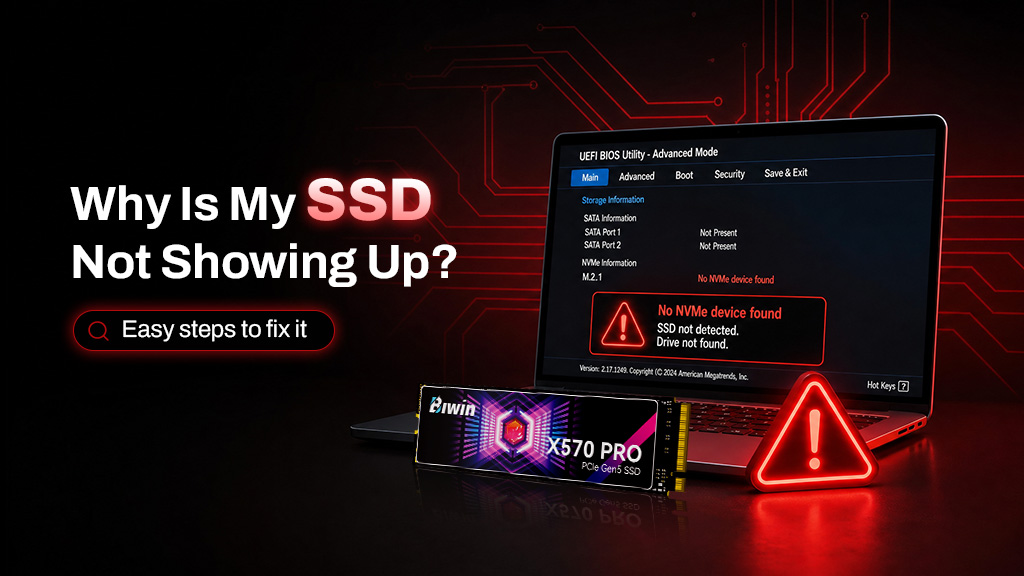
If your SSD isn’t showing up in Windows, it may not be installed correctly; it may not be initialized yet, or in some cases, it may be fault or damaged. To find out what the issue might be, you can use SSD health monitoring software, like Biwin Intelligence, and built-in Windows tools to diagnose it.
If your SSD isn’t showing up in Windows, you’ll need to take some steps to rectify the problem. It could be something simple and easy to fix, but it’s also possible that the drive is damaged or defective. To figure out what’s wrong, you can use SSD health monitoring software and built-in Windows tools to help diagnose the problem. From there, the fix should be straightforward.
Is it installed correctly?
The first step is to ensure the SSD is installed correctly. If it’s an NVMe SSD, make sure it is secured properly in the slot, and oriented the right way so that the notch in the middle of the slot lines up with the one on the SSD’s connector. Make sure the SSD is secured in place with the retaining screw or bracket, and that any heatsinks are securely fastened on top.
If you have any doubt in any of the above, remove the SSD from its slot and remount it so you can guarantee it’s connected and in place as it should be.
If it’s an older SATA SSD, make sure the SATA power and data cables are connected securely at both ends. If you’re unsure if the cable(s) work, consider replacing them to make sure.
Have you initialized the drive?
When you install a new SSD, you usually need to initialize it. To do so, use Windows search to look for “Disk Management.” Select the option called “Create and format hard disk partitions,” to open the Windows disk manager.
Look through the list of drives to find the one you’ve added. It likely has a large black “Unallocated” section listed next to it. When you’ve found it, right click the drive and select Online if it’s not already. If it is, select Initialize Disk.
Confirm that you’ve selected the right disk and make sure GPT is the chosen partition style. Select OK to continue.
If you want to, you can then right-click the drive’s unallocated space and select New Simple Volume. If you want, you can use a portion of the drive’s capacity, but most volumes use the full capacity. Choose your preferred drive letter and select Next. Select Finish to prepare the disk.
Check your SSD Health
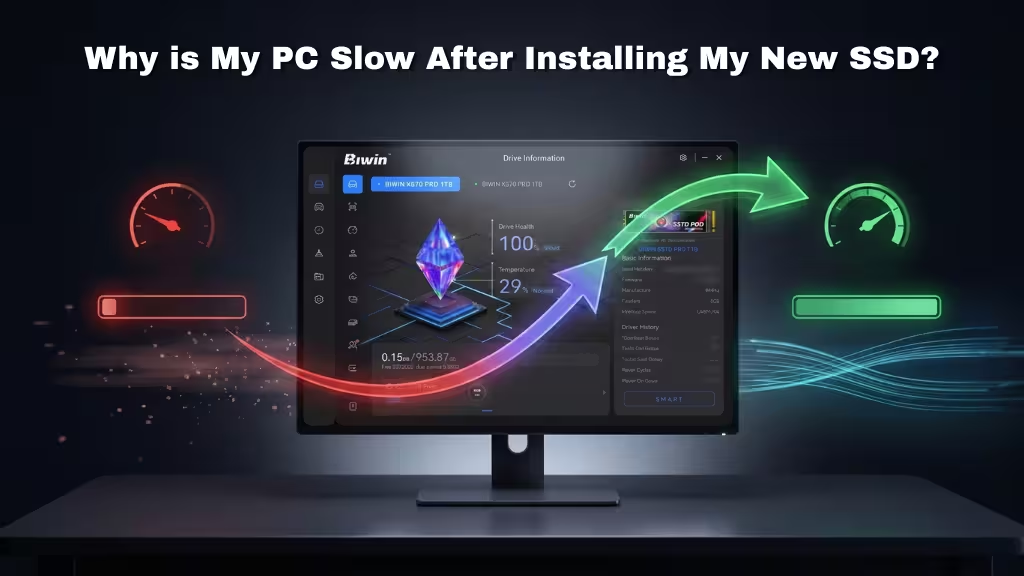
If you’re using a Biwin SSD, or one from one of our partner brands (Asus, Predator, or Lenovo) and would like more information about its health, Biwin Intelligence Software is a useful monitoring tool which will help you stay on top of all your SSD needs and comes free with every SSD. It gives you details on your drives’ capacities, their operating temperatures, drive health (and when you might need to think about replacing them).

You can also use it for performance testing and optimization, secure erase, drive cloning, firmware updates, and more. It’s the perfect companion for a modern, high-end SSD.
For other branded drives, there are third-party tools that you can use instead like CrystalDiskInfo.
Keep Your SSD Running at Its Best with Biwin Intelligence
Whether you’re troubleshooting a drive detection issue or simply keeping your system in peak condition, having the right tools makes all the difference. Pairing a high-performance SSD like the Biwin Black Opal X570 PRO with Biwin Intelligence Software gives you complete visibility into your storage device.
Monitor drive health, temperature, capacity, and performance in real time, while also accessing useful features such as firmware updates, drive cloning, secure erase, and performance testing. Together, the X570 PRO and Biwin Intelligence provide the speed, reliability, and management tools needed to keep your system running smoothly for years to come.