Description:
Checking your SSD’s health is a great way to ensure your data is safe and secure and that you can expect peak performance from your fast SSD storage. Alternatively, if your drive is getting older, checking its health can be a good way to find out if you need to upgrade in the near future.
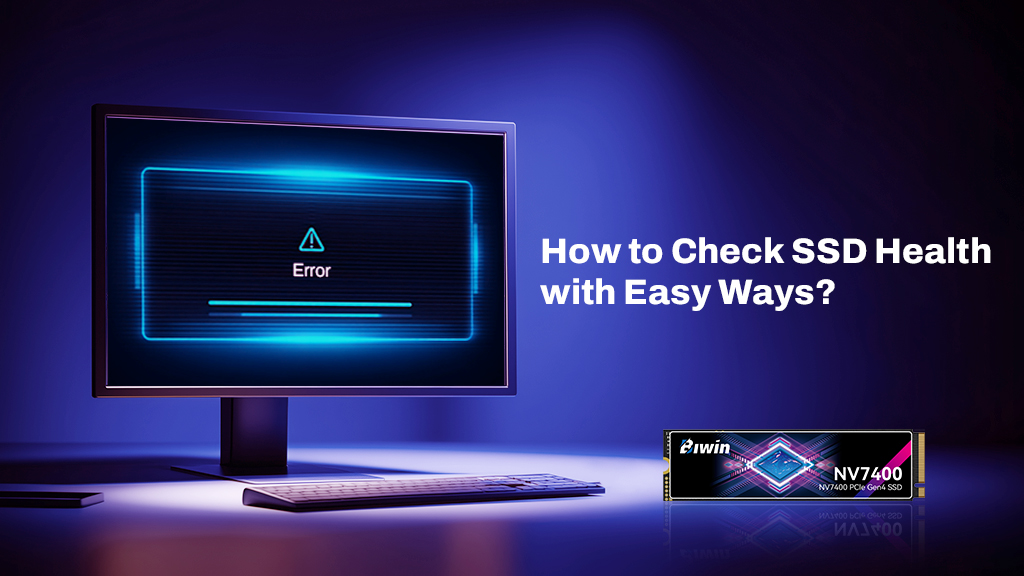
Checking your SSD’s health is the best way to find out if it’s working at peak performance, or whether it might be nearing time for an upgrade or replacement. That goes for internal SSDs in desktops and laptops, and external SSDs that you plug in via USB-C or another connection. Fortunately, there are a range of applications that make checking the health of your SSDs quick and easy.
SSD Health Check with Biwin Intelligence Software
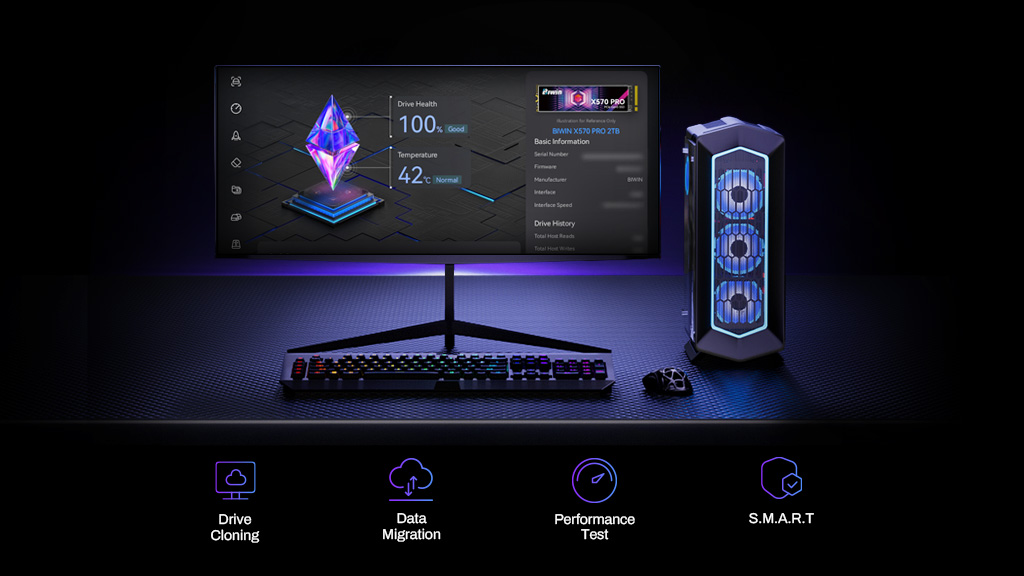
The best way to get an SSD health check is using Biwin Intelligence Software. It works with any brand of SSD or hard drive and can give you clear access to a range of important SSD health data. Biwin Intelligence works as an all-in-one solution for monitoring and managing SSD health, combining error scan, performance test, data migration and other essential drive management tools in a single interface.
To use it, download the application from the Biwin website and install it like you would any other app. When you run the app, you’ll be greeted with a home screen that showcases each of your connected SSDs – you can select which one to investigate using the menu tabs at the top of the screen.
On each drive page, you’ll find a percentage readout for the drive’s health. Anything over 80% is fine, but once it starts to get into the low-80s, it’s worth starting to think about replacing the drive, as you’re starting to miss out on performance and data integrity is not as secure as when the drive is at or near 100%.
If you think your drive is experiencing some data errors, you can also run an Error Scan within the Biwin Intelligence Software, which can help you fix short term issues. If you keep getting errors, though, it’s probably time to replace the drive.
Drive temperature is worth keeping track of, too. High SSD temperatures can result in thermal throttling in the short term, leading to degraded performance. Over time, though, hot drives will fail faster than those that operate within safer temperatures, so keeping your drives relatively cool is good standard operating procedure.
You’ll also be able to view information like the file system and free, allocated space on the drive. Maintaining at least 20% empty space on the drive can also help extend its lifespan. If your drive is anything over that, consider uninstalling a few games or apps, or deleting a few unnecessary files to help free up enough space to keep the SSD operating at peak performance.
Other useful functions within Biwin Intelligence Software include performance benchmarking for SSDs – also useful when checking if your drive is operating properly – firmware updates (Biwin drives only), drive cloning, secure erase (zero-fill), and data migration.
Check SSD Health with CrystalDiskInfo
For a third-party alternative, CrystalDiskInfo is a popular alternative. It also tracks important information like drive health, operating temperature, and space capacity, and it’s available in a range of visual skins if you have a preference on how the interface looks.
To use CrystalDiskInfo, download the app from the official site and install it like you would any other. When you run it, you’ll be given a window with all the information you need on your SSD.