Description: Optimizing your PC for gaming is a great way to get the full performance from your system without needing to upgrade your components. It makes the most of your investment, while enhancing game performance, and boosting frame rates and detail levels to make your games look, feel, and play better.
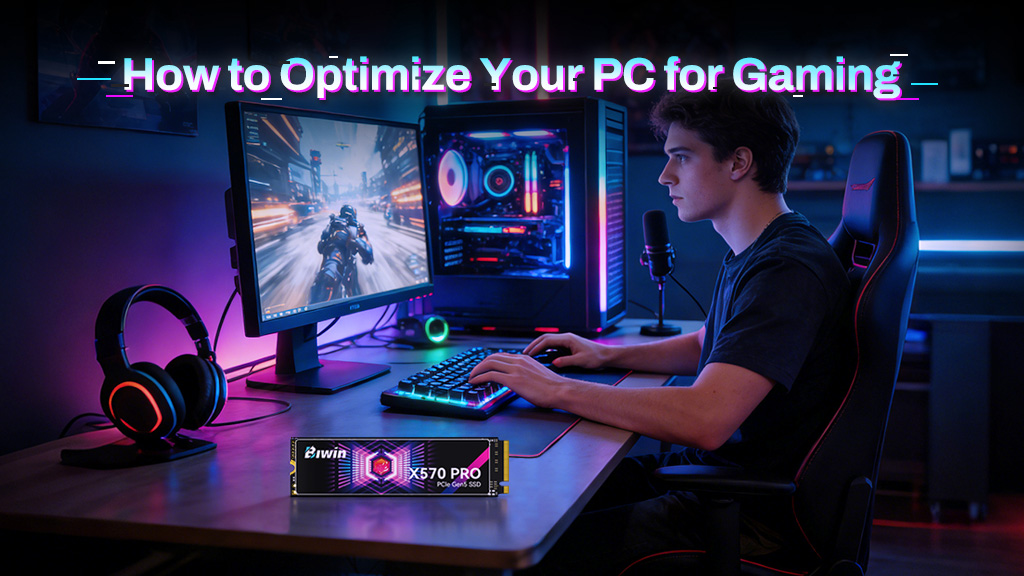
Upgrading your PC’s components is always the best way to increase performance, but there are ways you can enhance your system’s capabilities without needing to spend anything. If you optimize your PC for gaming with the right downloads, system settings, and software tweaks, you can make a huge difference to how your games play, helping you enjoy smoother frame rates and higher detail levels. In competitive games, that can even make the difference between winning and losing.
Here are some of the best ways to optimize your gaming PC to ensure it’s running at peak performance.
How to Optimize your PC for gaming
Update your drivers
The most straightforward and easy step to improve your PC’s performance is to make sure it’s running all the latest drivers. Graphics drivers should be the first consideration – download them from the official Nvidia, AMD, and Intel websites. Once you’ve done those, though, make sure to update your motherboard chipset drivers and update Windows until it’s the latest version.
These updates often come with stability improvements and performance enhancements which can have a real impact on your games, especially if you’re playing something new.
Turn on REBAR
Resizable BAR (REBAR), or Smart Access Memory (SAM) allows your CPU to access more graphics memory at once for moving data around and can have a big impact on gaming performance – particularly Intel GPUs. Ensure it’s turned on in your BIOS and/or graphics drivers.
Turn on XMP/EXPO
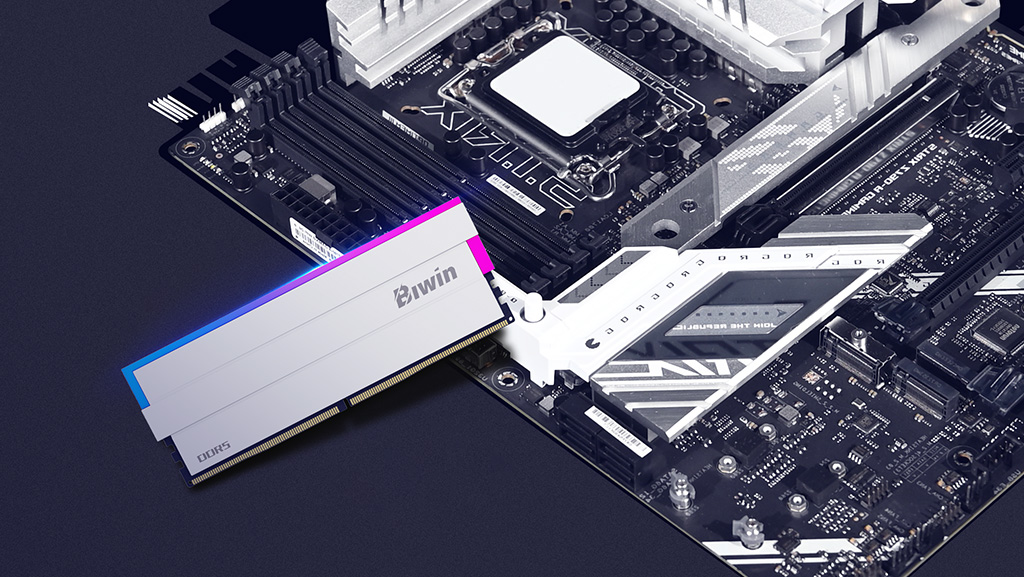
Intel XMP and AMD EXPO profiles boost memory performance by applying an automatic overclock and tightening memory timings. It’s the kind of thing you can do manually, especially if you’re using a high-end kit like Biwin’s Black Opal DW100 kit, but almost any memory can benefit from enabling your memory profile in the BIOS.
Lower in-game settings
We all love gaming at high settings, but not all of them are worth pushing to “Ultra.” Look at game optimization guides for what you’re playing and see if there are some settings you can turn down without too-negative an impact. Ray tracing is a key setting which can use a lot of system resources, but anti-aliasing and soft shadows play their part too.
Optimize your games for the hardware you have, and you’ll find your experience much improved.
Turn on upscaling and frame generation
One setting you do want to use (outside of competitive gaming) is DLSS, FSR, or XeSS. These settings dynamically upscale your game for improved performance and visuals. You can also turn on frame generation to increase frame rates dramatically but only do it if you have at least 60 FPS average without it, or the side effects can be particularly noticeable.
If your game doesn’t support upscaling or frame generation, consider installing Lossless Scaling. It’s a third-party tool that works with just about everything.
Turn on high-power mode
Navigate to Control Panel > Power Options > High Performance, and toggle it On. This is more important for laptops than desktops but can sometimes unlock extra power for your components to run faster.
Windows game mode
Turn on Windows game mode to ensure games are prioritized by the task scheduler. Navigate to Settings > Gaming > Game Mode and toggle it On.
Reduce background apps
If you have any apps running while you’re gaming, you may be sapping game performance. Close any non-essential apps, like web browsers, photo and video editing software, email and chat apps, before starting your game.
Clean your system
A PC full of dust can slow down your components as they throttle themselves to prevent overheating. Cleaning out any dust, debris, and the odd spider from your gaming PC can make a world of difference to your gaming performance. It’ll sound much quieter, too, as the fans won’t have to work so hard.
Free up space on your SSD
If your SSD is full, or getting close to capacity, its performance won’t be as strong. It’s always a good idea to leave at least 20% of an SSD’s capacity free so the controller can shuffle data around for the best performance. If your SSD is maxed out, consider deleting old files, folders, and applications and games you don’t need any more to free up space.
For tips on choosing the right SSD for your system, check out our guide on how to pick the best SSD for your PC. It covers capacity, speed, and compatibility to help you make the best choice.
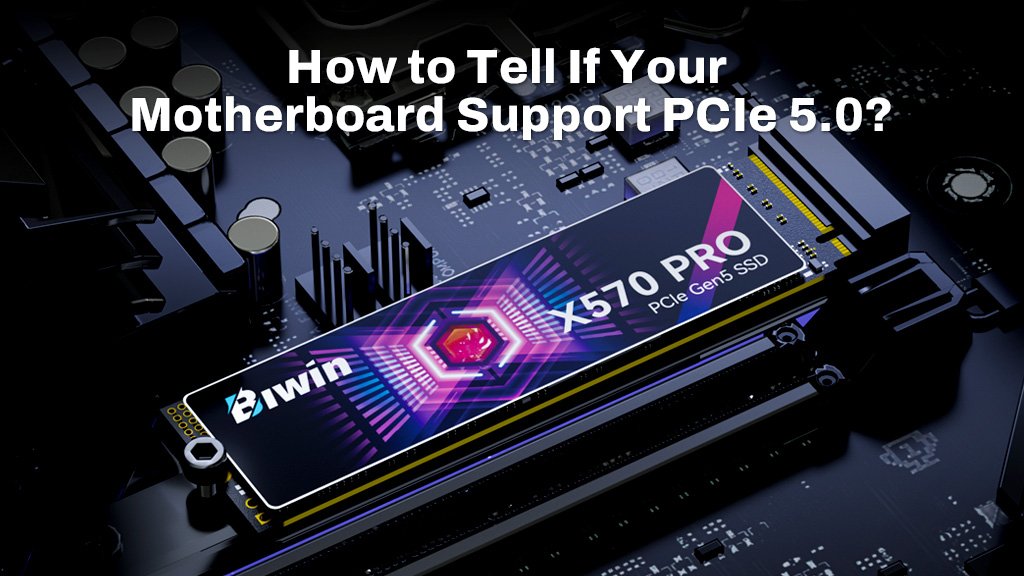
Alternatively, upgrade or add an additional SSD like the Biwin Black Opal X570 Pro for maximum gaming performance, cutting down on load times and giving you full support for DirectStorage and other advanced technologies.
High-Speed SSD Upgrade for a Gaming PC
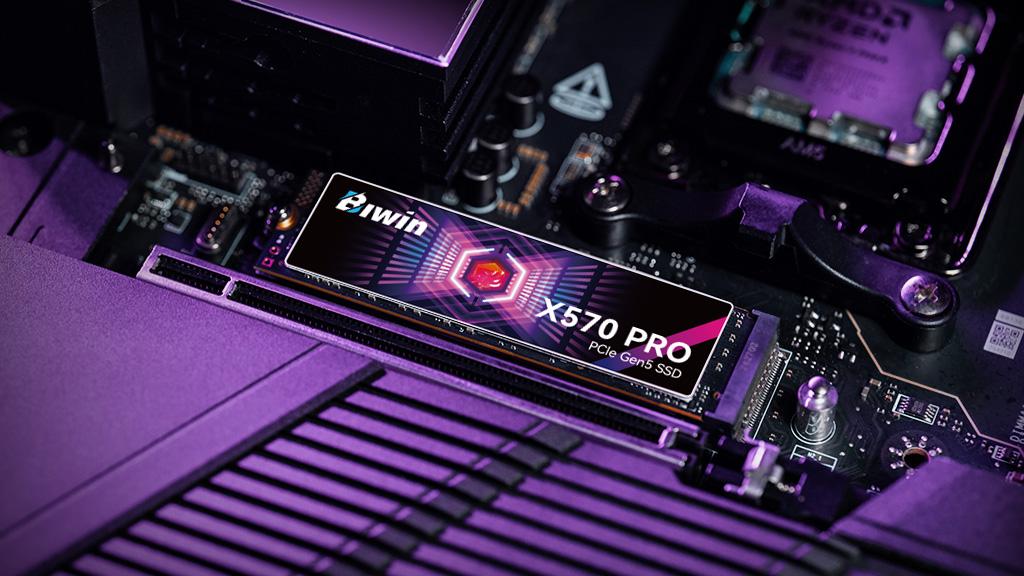
For modern gaming PCs, high-speed NVMe SSDs such as the Biwin Black Opal X570 PRO illustrate how newer storage technologies can further reduce load times.
Built on a PCIe Gen 5×4 interface with NVMe 2.0, the X570 PRO delivers sequential read speeds up to 14000 MB/s and write speeds up to 13000 MB/s, allowing large game assets and textures to be accessed more quickly. Its independent DRAM cache up to 8 GB, combined with a 6nm controller supporting up to eight NAND channels, helps maintain consistent performance during extended gaming sessions. The advanced thermal design further enhances stability under sustained workloads.
For users optimizing a modern gaming PC, high-performance SSDs like the X570 PRO serve as a capable high-speed storage upgrade that complements today’s high-performance CPUs and GPUs.