You can make Blender render faster by improving your system hardware and adjusting your Blender settings. A faster CPU, faster memory, and faster graphics card can all impact your render times – so be sure you’re running the best system you can.
Blender is one of the most popular free 3D modeling tools, and one of the main reasons for that is how easy it is to get running. Its system requirements are very forgiving and it runs on all the major operating systems. It runs from a USB stick, from a folder on your desktop, or fully-installed. However you want to run it, you can.
But that doesn’t mean it’s not worthwhile using Blender on more powerful systems. They are certainly faster when it comes to the final render and there are ways you can make it even faster by upgrading your hardware and adjusting Blender settings for improved performance.
Blender System Requirements
Blender’s system requirements are far from demanding, but it’s the kind of application that scales well with more powerful hardware.
The minimum system requirements are:
- CPU: Four core CPU with SSE 4.2 support
- RAM: 8GB
- GPU: 2GB VRAM with OpenGL 4.3, Vulkan 1.3 support
Quad core CPUs have been mainstream for well over a decade, so just about any PC released in the past 10 years should have no trouble running Blender.
To run it better, though, meeting or exceeding the Recommended system requirements will help:
- CPU: 8 cores
- RAM: 32GB
- GPU: 8GB VRAM
Note that the most important part of boosting Blender performance is down to memory. Increasing system RAM capacity to 32 GB and improving VRAM to 8 GB will help accelerate a range of Blender tasks.
For making Blender render faster, though, graphics upgrades are the most important.
Best PC Upgrades for Blender
If you can already match or exceed the recommended system requirements for blender, there are ways to further enhance your performance further. The best way is to upgrade your internal components.
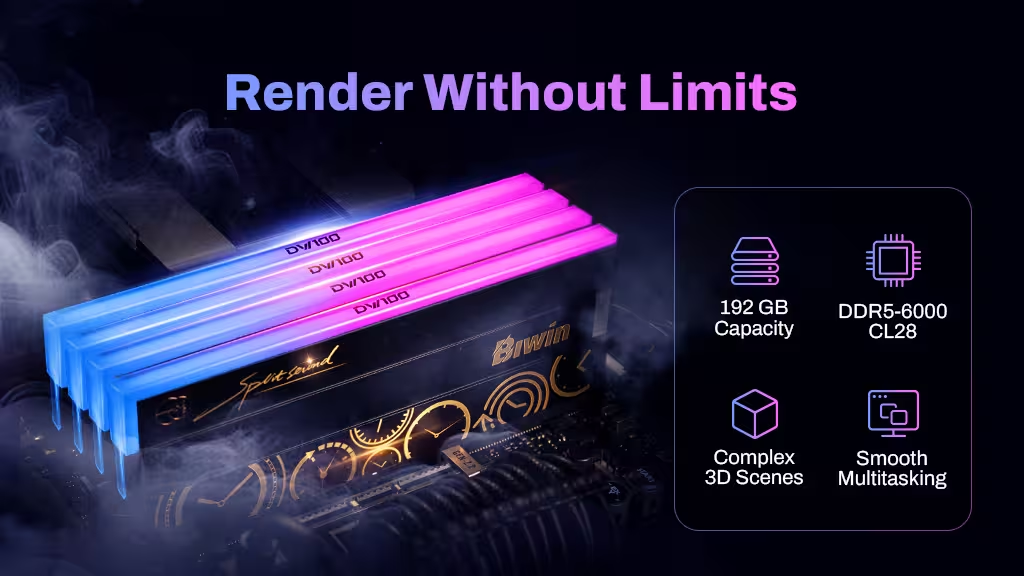
Switching out your RAM for a higher-capacity, high-performance kit like our Black Opal OC Lab Gold Edition DW100 kit, can make a big difference by speeding up the transfer of data between the CPU and GPU. For CPU-driven tasks, it will make the biggest difference, but RAM is a keystone of all sorts of PC-tasks, so faster memory will improve almost every facet of running Blender.
If you’re primarily rendering using your CPU, a faster processor with more cores can help accelerate rendering there, too. Using a CPU from the latest generation from AMD (Ryzen 9000) or Intel (Core Ultra 200) will help, though higher-end options with more cores from older generations can be a big upgrade if you’re running Blender on an older CPU.
GPU rendering is the fastest way to render in Blender, so upgrading your graphics card to one of the latest from NVIDIA (RTX 5000) or AMD (RX 9000) will make Blender render faster. Cards with lots of VRAM are preferred, so AMD’s RX 7900 XT and XTX models are great options, as are NVIDIA’s RTX 4090 and 5090 GPUs.
What About Settings?
You can also adjust your settings in Blender to improve rendering performance. You can lower the compression ratio, and increase noise threshold – though that will impact the eventual render quality. Lowering the number of samples can help too, depending on the kind of model you’re looking to render.
You can also try rendering in .PNG files for individual images for frames, and then combine them later – leaving the rendering to complete over night.
If you are using an NVIDIA card, make sure you enable CUDA support for the fastest GPU rendering.
Faster Blender Rendering for Everyone
With some hardware upgrades and a few settings tweaks, you should be able to accelerate your Blender renders so they take far less time to complete. However, if after making those changes you’re still struggling to complete renders in the time you want, you can always outsource it those with more powerful systems. The SheepIt community will let you collaborate on rendering projects with hundreds of others of users, and then submit your render to be completed. Together you can help get projects done in less time, for free!
Speed Up Blender Workflows with Extreme Memory Capacity: Biwin Black Opal OC Lab Gold Edition DDR5 192GB Kit
Blender performance scales heavily with hardware, and when working on complex scenes, high-resolution textures, or simulation-heavy projects, system memory often becomes one of the key limiting factors. While CPU and GPU acceleration drive render speed, insufficient RAM can still cause slowdowns, long cache times, or even system instability during demanding workloads.
The Biwin Black Opal OC Lab Gold Edition 192GB DDR5 kit (48GB x 4) is designed for creators who need both high capacity and stable high-bandwidth performance. Built on DDR5 architecture with optimized OC Lab tuning, it delivers strong data throughput that helps keep large project files, textures, and scene data flowing efficiently between CPU, GPU, and storage.
For CPU-based rendering, simulation tasks, and multitasking workflows such as running Blender alongside compositing or reference tools, this level of memory headroom helps reduce bottlenecks and improves responsiveness. It also supports more stable performance when handling extremely large scenes and memory-intensive projects in Blender. For creators pushing Blender to its limits, it provides the capacity and consistency needed to keep rendering workflows moving smoothly.